> ## Documentation Index
> Fetch the complete documentation index at: https://docs.gominimal.ai/llms.txt
> Use this file to discover all available pages before exploring further.
# Intercom
> Connect Intercom to Minimal AI
Connect Intercom to Minimal AI by creating an app in Intercom's Developer Hub and adding its credentials to the Intercom integration on our platform. You will copy the app's **access token** and **client secret** into Minimal AI, and configure **webhooks** so Intercom sends conversation events to Minimal.
## Create an app in the Developer Hub
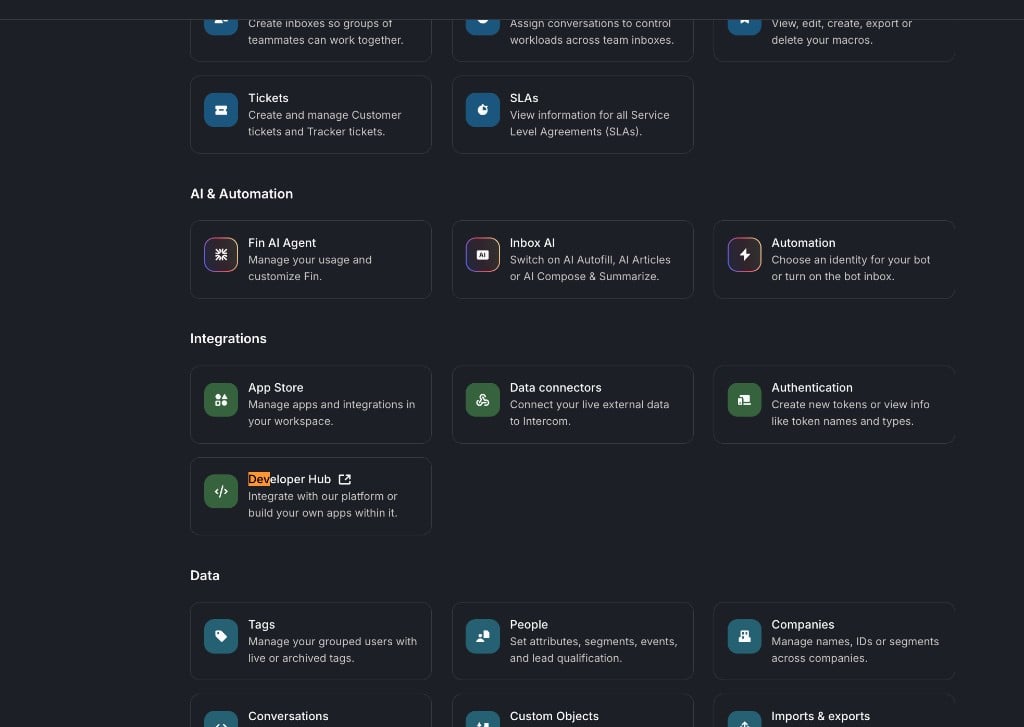
In Intercom, go to **Settings > Integrations > Developer Hub**.
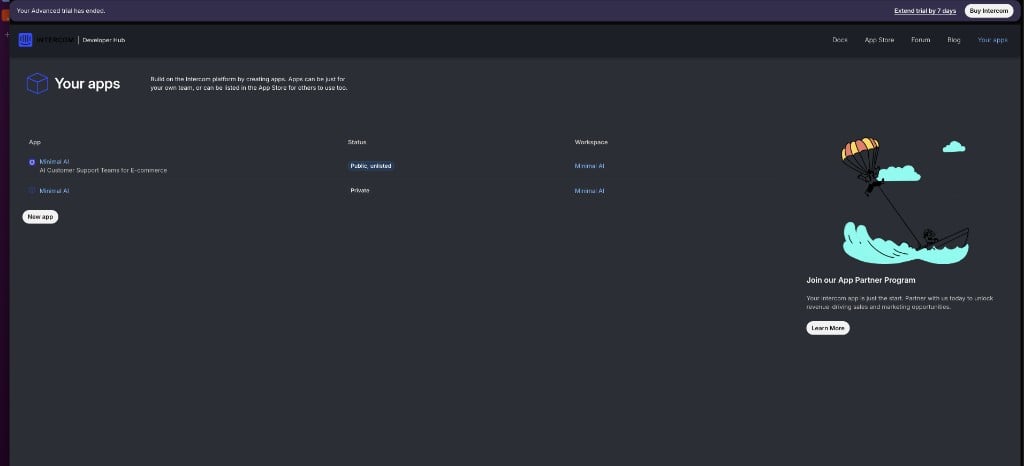
 On the **Your apps** page, click **New app** and create an app for your workspace.
 ## Add the credentials to Minimal AI
Open your app and go to **Configure > Authentication**. You will find the access token and client secret here.
## Add the credentials to Minimal AI
Open your app and go to **Configure > Authentication**. You will find the access token and client secret here.
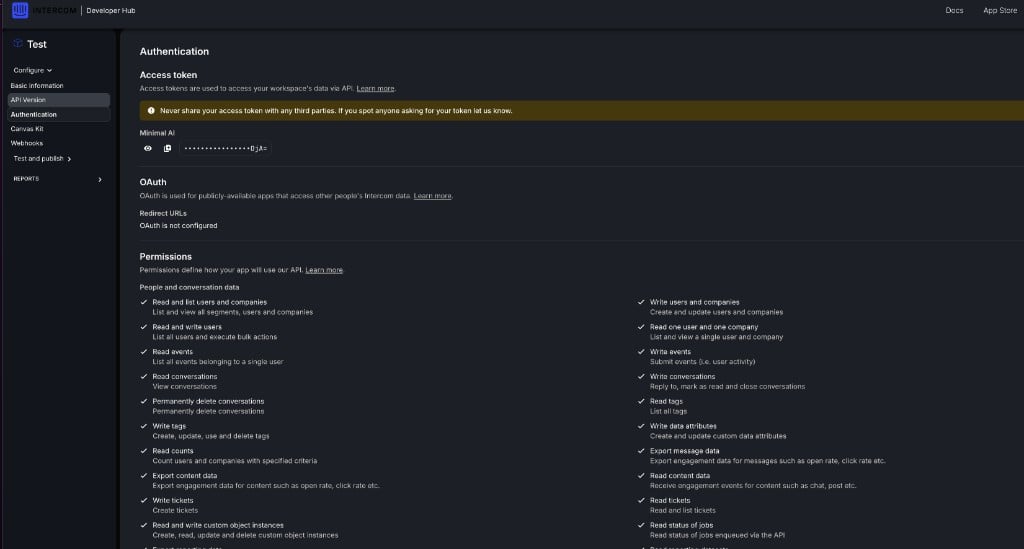 Copy the **access token** and paste it into the Intercom integration in [Dashboard > Integrations](https://gominimal.ai/dashboard/integrations).
Generate (if needed) and copy the **client secret**, then add it to the same Intercom integration in Minimal AI.
Never share your access token or client secret with third parties. Only paste them into Minimal AI's Intercom integration.
## Configure webhooks
In your Intercom app, go to **Configure > Webhooks** and set the endpoint URL to:
```text theme={null}
https://gominimal.ai/api/webhook-ingress/intercom
```
Subscribe to the following topics:
* `conversation.admin.replied`
* `conversation.operator.replied`
* `conversation.user.created`
* `conversation.user.replied`
* `ticket.created`
Once the credentials are saved in Minimal AI and the webhooks are active, Intercom conversations will flow into Minimal AI.
Copy the **access token** and paste it into the Intercom integration in [Dashboard > Integrations](https://gominimal.ai/dashboard/integrations).
Generate (if needed) and copy the **client secret**, then add it to the same Intercom integration in Minimal AI.
Never share your access token or client secret with third parties. Only paste them into Minimal AI's Intercom integration.
## Configure webhooks
In your Intercom app, go to **Configure > Webhooks** and set the endpoint URL to:
```text theme={null}
https://gominimal.ai/api/webhook-ingress/intercom
```
Subscribe to the following topics:
* `conversation.admin.replied`
* `conversation.operator.replied`
* `conversation.user.created`
* `conversation.user.replied`
* `ticket.created`
Once the credentials are saved in Minimal AI and the webhooks are active, Intercom conversations will flow into Minimal AI.